Fabric

DataEngineering

Copy job vs Copy activity Microsoft Fabric

Hello again!

Moving data remains one of the foundational activities in data engineering. Whether you’re consolidating information from multiple systems into a central lakehouse, performing regular incremental updates, or building complex ETL/ELT workflows, reliable and efficient data movement is essential for keeping analytics platforms current and accurate.

In Microsoft Fabric’s Data Factory, two powerful options stand out for handling these needs: Copy Job and Copy Data Activity. Both are designed to move data between a wide variety of sources and destinations, but they serve slightly different purposes depending on the complexity of the task.

What is a Copy Job?

Copy Job provides a streamlined, no-code (or low-code) experience for moving data without the need to build a full pipeline. It is ideal for straightforward data ingestion scenarios where you want quick setup and built-in intelligence for common patterns.

With a Copy Job, you select your source (databases, files, cloud storage, etc.), choose the destination (such as a Fabric Lakehouse or Warehouse), and configure how the data should be written. The interface guides you through connections, table selection, column mapping, and write behaviors.

Key capabilities include:

  • Full copy or incremental copy modes. In incremental mode, the job automatically tracks changes using watermark columns (like timestamps or ROWVERSION) or Change Data Capture (CDC) for supported databases.
  • Automatic table creation in the destination if the table doesn’t exist.
  • Options to truncate the destination table before loading.
  • Write methods such as Append, Upsert (merge based on keys), Overwrite, or SCD Type 2 (in preview for CDC scenarios).
  • Built-in audit columns that record extraction time, job ID, and source information for better traceability.
  • Scheduling support, including multiple schedules or event-based triggers.
  • Performance features like auto-partitioning (in preview) for large datasets.
  • Fault tolerance through resume-from-last-successful-run behavior.

Copy Jobs excel in scenarios like daily or hourly batch loads, database-to-lakehouse synchronization, or multi-source data consolidation where minimal orchestration is required.

What is Copy Data Activity?

When your requirements go beyond simple movement and involve orchestration, custom logic, or integration with other steps, the Copy Data Activity becomes the better choice. This activity is added directly to a Fabric data pipeline canvas, allowing it to sit alongside other activities such as transformations, validations, or conditional branching.

You can launch it via the Copy Assistant for a guided setup or add it manually for full control. Configuration happens across tabs for source, destination, mapping, and settings.

Key capabilities include:

  • Support for custom SQL queries or stored procedures at the source.
  • Advanced performance tuning: intelligent throughput optimization, degree of copy parallelism, staging for large transfers, compression, and data consistency verification.
  • Fault tolerance options to skip incompatible rows.
  • Parameterization for reusable activities across environments.
  • Seamless integration into broader pipelines that may include Data Flows, notebooks, or other activities.

Copy Data Activity is particularly useful for complex migrations, scenarios requiring custom transformations immediately after copying, or when you need to coordinate multiple data movements with dependencies and error handling.

Comparison Table: Copy Job vs. Copy Data Activity

Capability Copy Job Copy Data Activity (in Pipeline)
Setup Complexity Simple, no pipeline required Requires building and managing a pipeline
Flexibility Easy-to-use with advanced options Fully customizable and advanced
Native Incremental Copy Yes (watermark-based or CDC) No (requires custom logic or queries)
CDC Replication Yes No
User-defined Query Yes Yes
Table & Column Management Yes (auto-create, truncate, mapping) Yes (mapping, create new tables)
Write Behaviors Append, Upsert, Overwrite, SCD Type 2 Append, Upsert, Overwrite
Orchestration & Chaining Limited (can be called from pipeline) Excellent (integrates with other activities)
Scheduling Yes (built-in, multiple schedules) Yes (via pipeline triggers)
Performance Tuning Automatic optimization + auto-partitioning Detailed control (parallelism, throughput, staging)
Audit & Observability Built-in audit columns Advanced logging and pipeline monitoring
Best For Routine batch/incremental loads Complex workflows with transformations & logic

This comparison is based on Fabric’s official decision guide for data movement.

Choosing Between Copy Job and Copy Data Activity

  • Choose Copy Job when you need fast, reliable data movement with native incremental support, table management, and scheduling — but without the overhead of pipeline development. It offers a good balance of simplicity and advanced features like CDC and upsert.
  • Choose Copy Data Activity when you require full customization, complex orchestration, or integration with other pipeline activities. It provides maximum flexibility at the cost of a bit more setup time.

Many teams use both approaches together: Copy Jobs for the majority of routine table syncs, and Copy Activities inside pipelines for the more intricate or transformation-heavy flows.

Both options are serverless, scale automatically, support on-premises sources via gateways, and integrate natively with the rest of Fabric (Lakehouse, Warehouse, Power BI, etc.). They also include robust monitoring so you can track run history, throughput, errors, and performance metrics.

In practice, starting with a Copy Job often gets you productive quickly. Once your needs evolve toward more sophisticated workflows, transitioning selected jobs into pipeline-based Copy Activities is straightforward.

Data movement doesn’t have to be complicated or fragile. With Copy Job and Copy Data Activity, Fabric makes it accessible, scalable, and observable — freeing data engineers to focus on higher-value work like modeling, analytics, and delivering business insights.

If you’re exploring Fabric Data Factory, I recommend trying a simple Copy Job first to experience the ease, then experimenting with the Copy Activity inside a pipeline to see the added power of orchestration.

What data movement challenges are you facing in your environment? Feel free to share in the comments.

Next in the data engineering series, we’ll explore how to combine these movement options with transformations and monitoring for robust end-to-end pipelines.

Thanks for reading! Stay tuned for more practical insights on Microsoft Fabric. Subscribe to the newsletter and keep exploring the world of data. 🚀

DataEngineering

Workspace Identity in Microsoft Fabric

If you’re starting with Microsoft Fabric or Power BI, you’ll often hear the term Workspace Identity. It may sound complex, but it’s actually a simple and powerful concept that improves security, automation, and governance in your data platform.

What Is Workspace Identity?

Workspace Identity is a system-assigned identity created for a workspace in Microsoft Fabric and Microsoft PowerBI.

Think of it as a service account automatically managed by Microsoft that allows the workspace to securely access other resources without using personal user credentials.

Simple Definition

Workspace Identity = A secure, automatic identity that a workspace uses to access data and services.

Why Do We Need Workspace Identity?

Before Workspace Identity, many solutions relied on:

Personal accounts Shared service accounts Stored credentials in scripts

These approaches can cause security risks and maintenance issues.

Problems Without Workspace Identity

Password expiration breaks pipelines Security risks from shared credentials Difficult auditing and governance Manual credential management

Benefits With Workspace Identity

✔ No stored passwords

✔ Centralized security management

✔ Supports automation & pipelines

✔ Improves compliance and governance

How Workspace Identity Works

A Workspace Identity is created and managed in Microsoft Entra ID (formerly Azure AD).

It authenticates the workspace when accessing services like storage, databases, or APIs.

Architecture Overview

1️⃣ Without Workspace Identity (Old Approach)

Explanation:

User credentials are stored in pipelines or notebooks Fabric workspace uses those credentials Access is granted to data sources

❌ Risk: Credentials can expire or be exposed.

2️⃣ With Workspace Identity (Recommended Approach)

Explanation:

Workspace has a system-assigned identity Identity is registered in Microsoft Entra ID Data sources grant access to the workspace identity Secure authentication happens automatically

✔ No passwords stored

✔ Secure & scalable

Key Components

🔹 Workspace

A container for reports, datasets, notebooks, and pipelines in Fabric/Power BI.

🔹 Workspace Identity

A system-managed identity linked to the workspace.

🔹 Microsoft Entra ID

Identity provider that authenticates the workspace.

🔹 Data Sources

Examples include:

Azure Data Lake SQL Databases REST APIs Key Vault

Real-World Example

Imagine you have a Fabric workspace that runs a pipeline to load data from Azure Data Lake.

Without Workspace Identity

Pipeline stores a service account password Password expires → pipeline fails

With Workspace Identity

Workspace authenticates using its identity No password to manage Pipeline runs reliably

When Should Beginners Use Workspace Identity?

Use Workspace Identity when:

✔ Accessing Azure resources securely

✔ Automating pipelines and notebooks

✔ Avoiding credential storage

✔ Implementing governance best practices

How to Enable Workspace Identity (High-Level Steps)

Open your workspace in Microsoft Fabric / Power BI Go to Workspace Settings Enable Workspace Identity Assign permissions in Azure resources (IAM)

Security Best Practices

Grant least privilege access Monitor access using audit logs Avoid using personal accounts in production Use Workspace Identity for automation

Common Beginner Mistakes

❌ Using personal accounts in pipelines

❌ Hardcoding credentials in notebooks

❌ Granting excessive permissions

❌ Not documenting identity usage

Summary

Workspace Identity is a foundational security feature in Microsoft Fabric and Power BI that allows workspaces to authenticate securely without storing credentials.

Key Takeaways

It is a system-managed identity Improves security and governance Essential for automation and enterprise solutions Recommended for all production workloads

Thanks for reading! Stay tuned for more practical insights on Microsoft Fabric. Subscribe to the newsletter and keep exploring the world of data. 🚀

DataEngineering

Notebooks in Microsoft Fabric

If you’re new to Microsoft Fabric and feeling a bit overwhelmed by all the tools at your disposal, you’re in the right place.

If you’re not quite sure what Microsoft Fabric is yet, I highly recommend checking out my introductory series on Microsoft Fabric before diving in.

Notebooks in Fabric are like your personal playground for coding, data wrangling, and even building machine learning models. They’re built on Apache Spark, making them perfect for data engineers and scientists alike. In this guide, we’ll walk through the basics of using notebooks, from creation to advanced features, sprinkled with handy tips and tricks to make your life easier. We’ll draw from Microsoft’s official documentation to keep things accurate and up-to-date.

Whether you’re ingesting data, transforming it, or experimenting with ML, notebooks offer an interactive, web-based environment that’s collaborative and powerful. Let’s dive in!

What Are Notebooks in Microsoft Fabric?

At their core, notebooks are interactive documents where you can mix executable code, visualizations, and explanatory text. Think of them as a blend of a code editor, a report builder, and a collaboration tool—all powered by Apache Spark for handling big data.

  • For Data Engineers: Use them to ingest, prepare, and transform data seamlessly.
  • For Data Scientists: Experiment with machine learning models, track progress, and deploy solutions.
  • Key Perks: Real-time visualizations, Markdown for documentation, and tight integration with Fabric’s ecosystem like lakehouses and pipelines.

Tip: If you’re coming from Jupyter Notebooks, you’ll feel right at home—Fabric supports importing .ipynb files directly!

Getting Started: Creating Your First Notebook

Starting is simple—no need for complex setups.

  1. Head to the Data Engineering homepage in Fabric.
  2. Click New in your workspace or use the Create Hub.
  3. Select Notebook, give it a name, and boom—you’re in!

You can also import existing notebooks:

  • From your local machine: Use the workspace toolbar to upload .ipynb, .py, .scala, or .sql files. Fabric converts them automatically.

Trick: Always start with a blank notebook for practice. Name it something descriptive like “MyFirstDataTransform” to keep your workspace organized.

Editing and Saving: The Basics

Once created, your notebook opens in Develop mode (if you have edit permissions). Here’s the lowdown:

  • Autosave is On by Default: Edits save automatically after you start working. No more losing progress!
  • Switch to Manual Save: Go to Edit > Save options > Manual if you prefer control. Then use Ctrl+S or the Save button.
  • Save a Copy: Clone your notebook to experiment without messing up the original—great for testing variations.

Tip: In a team setting, toggle to Run Only or View mode to avoid accidental changes when reviewing someone else’s work.

Trick: Use Save a Copy to create branches for different experiments, like one for data cleaning and another for visualization tweaks.

Working with Cells: Code and Markdown Magic

Notebooks are made of cells—building blocks for your content.

  • Code Cells: Write and run code in languages like Python, Scala, or SQL. Right-click files in the lakehouse explorer to auto-generate code snippets (e.g., loading a CSV with Spark or Pandas).
  • Markdown Cells: Add text, headings, lists, or even images for explanations. Perfect for documenting your thought process.

To run a cell: Hit the play button or use shortcuts (more on those later).

Tip: Start every notebook with a Markdown cell outlining your goals—it keeps you focused and helps collaborators understand your flow.

Trick: Use magic commands (like %%sql for SQL queries or %%pyspark for PySpark code) to switch contexts quickly without restarting sessions. This is a game-changer for mixing languages in one notebook!

Integrating with Lakehouses and Managing Files

Fabric shines in data integration—notebooks connect seamlessly to lakehouses for file and table access.

  • Add a Lakehouse: From the Lakehouse explorer, attach an existing one or create new. Pin it as default for easy paths (e.g., read files like they’re local).
  • Browse and Operate: In the Lake view, explore tables and files. Right-click to copy paths or generate load code.
  • Resource Folders:
    • Built-in Resources: Per-notebook storage for small files (up to 500 MB total). Upload, download, or access via relative paths.
    • Environment Resources: Shared across notebooks in the same environment—ideal for common scripts.

Need to edit a file? Use the built-in File Editor for CSV, TXT, PY, etc. (up to 1 MB). Save with Ctrl+S.

Tip: After pinning or renaming a lakehouse, restart your Spark session to avoid path errors.

Trick: Drag and drop files into the resources folder for quick uploads. Use notebookutils.nbResPath() in code to grab absolute paths dynamically—saves time debugging!

Running Code: Sessions, Security, and Best Practices

Running code is interactive and secure:

  • Interactive Runs: Manual execution under your user context.
  • In Pipelines or Schedules: Runs under the pipeline editor’s or schedule creator’s identity—double-check permissions!

First-time users get a warning: Review code before running to avoid surprises.

Tip: For big jobs, monitor Spark sessions in the UI to spot bottlenecks early.

Trick: Use workspace stages (dev/test/prod) to test notebooks safely without risking production data. Always review version history before executing shared code.

Keyboard Shortcuts to Boost Productivity

Who doesn’t love shortcuts? Here are essentials:

  • Ctrl+S: Save (in manual mode).
  • In the file editor: Standard code navigation and editing keys work, with syntax highlighting.

Tip: Learn cell-specific shortcuts like Shift+Enter to run and move to the next cell—speeds up iterative testing.

Trick: Customize your workflow by combining shortcuts with magic commands for ultra-efficient debugging.

Collaboration: Team Up in Real Time

Notebooks aren’t solo affairs:

  • Co-editing: Multiple users edit simultaneously—see cursors, selections, and live changes.
  • Sharing: Grant Edit, Run, or Share permissions via the toolbar.
  • Comments: Add threaded discussions on cells. Tag @users for notifications (emails sent if needed).

Tip: Use comments for feedback loops in team projects—it beats endless email threads.

Trick: For pair programming, share in Develop mode and use real-time visibility to debug together remotely.

Version History: Track Changes Like a Pro

In preview, but super useful:

  • Checkpoints: Auto every 5 minutes, or manual for milestones.
  • Diff View: Compare versions to see changes in code, output, and metadata.
  • Restore or Copy: Roll back or branch from old versions.

Integrates with Git, VS Code, and pipelines for multi-source tracking.

Tip: Create manual checkpoints before major experiments—easy rollback if things go sideways.

Trick: Label versions descriptively (e.g., “Added ML Model v1”) to make history navigation a breeze.

Troubleshooting Common Hiccups

  • Session Issues: Restart after lakehouse changes.
  • File Limits: Stick to 100 MB per file in resources; use lakehouses for bigger stuff.
  • Permissions: Ensure collaborators have access to tagged resources.
  • No Autosave in Editor: Always Ctrl+S when editing files.

Best Practice: Verify the “last modified by” user in pipelines to maintain security.

Top Tips and Tricks for New Learners

Here’s a roundup to accelerate your learning:

  • Start Small: Begin with simple data loads from a lakehouse to build confidence.
  • Visualize Early: Use libraries like Matplotlib in code cells for quick charts—Fabric handles rich outputs beautifully.
  • Experiment with Modes: Switch between Develop and Run Only to test execution without edits.
  • Leverage Integrations: Mount lakehouses as defaults to simplify paths; it’s a huge time-saver.
  • Security First: Always scan shared notebooks via version history.
  • Resource Optimization: Use shared environment folders for reusable code modules across projects.
  • Pro Debugging: Tag comments during co-edits for targeted fixes.
  • Bonus: If stuck, check Fabric’s troubleshooting sections or community forums for real-world advice.

Wrapping Up

Congratulations—you’re now equipped to tackle notebooks in Microsoft Fabric like a seasoned pro! They’re not just tools; they’re your gateway to efficient, collaborative data work. Practice with a sample dataset, experiment freely, and soon you’ll be building pipelines and ML models effortlessly.

Stay tuned for more advanced guides and real-world scenarios on Microsoft Fabric. Subscribe to the newsletter and keep exploring the world of data. 🚀

Fabric

Data Activator in Microsoft Fabric

Hello and welcome back to our Microsoft Fabric series!

In the previous article, we explored EventStream and Real-Time Analytics — how to capture live streaming data, transform it with a simple visual editor, store and query it fast in Eventhouse using KQL, and visualize insights in real time with Power BI dashboards. That setup gives you powerful “observe and understand” capabilities for fast-moving data.  If you missed it, go check EventStream and RTA out for context.

Today, we complete the real-time loop with Data Activator (also known as Activator or part of Reflex items in Fabric). This is the “act” layer: once your data is flowing and conditions are detected, Data Activator automatically triggers actions — no constant monitoring required!

Imagine your system spotting a problem (like temperature too high or sales dropping sharply) and instantly sending a Teams message, emailing the team, restarting a pipeline, or kicking off a workflow. That’s Data Activator in action — turning passive insights into proactive decisions, often in near real-time.

What is Data Activator?

Data Activator is a no-code automation tool in Microsoft Fabric’s Real-Time Intelligence experience. It continuously monitors your data sources and fires off actions when user-defined rules or conditions are met.

Key points for new learners:

  • No coding needed — Use a visual designer to set up what to watch and what to do.
  • Fast detection — Works with streaming data for sub-second or low-latency responses.
  • Built-in actions — Send emails, post to Teams, trigger Power Automate flows, run Fabric items (like notebooks or pipelines), or call custom endpoints.
  • Integrated everywhere — Pulls from EventStream, Eventhouse/KQL, Real-Time Dashboards, Power BI visuals, and more.

Think of it as “IFTTT for your Fabric data” — but enterprise-grade, scalable, and deeply connected to the rest of the platform.

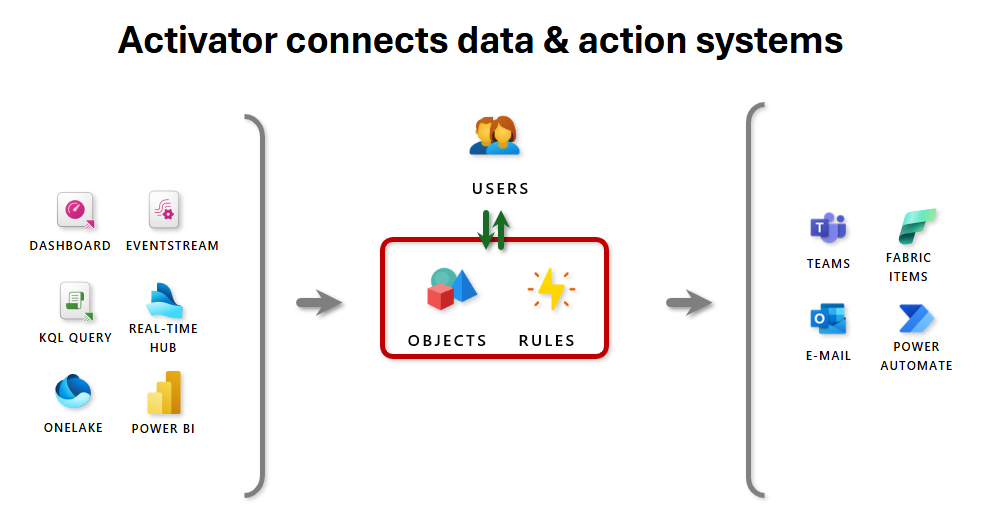
Here’s a high-level diagram showing how Activator connects data sources to actions:

What is Fabric Activator? - Microsoft Fabric | Microsoft Learn

This visual illustrates the flow: data from dashboards, EventStream, KQL queries, etc. → objects & rules in Activator → users get alerts → actions fire in Teams, email, Fabric items, Power Automate, etc.

How Data Activator Works: Step-by-Step Flow

  1. Create a Reflex (Activator item) In your Fabric workspace: New → Reflex. This is your container for monitoring rules.

  2. Choose & Connect Data Pick a source:

    • EventStream (live events)
    • Eventhouse / KQL database
    • Real-Time Dashboard tiles
    • Power BI report visuals
    • Fabric system events (e.g., pipeline failures)

    Activator auto-detects “objects” (like a package, sensor, or truck) and their “properties” (status, temperature, etc.).

  3. Build Rules in the Visual Designer

    • Select what to monitor (e.g., “Delivery status” or “Temperature”).
    • Define conditions (e.g., “Increases above 25” or “Equals Failed”).
    • Add summarization if needed (average over 5 minutes, etc.).
    • Choose actions (email, Teams message, Fabric item trigger, etc.).

Here’s a screenshot of the Activator rule creation interface with conditions and actions:

Create Activator rules - Microsoft Fabric | Microsoft Learn

This shows the explorer on the left (objects/properties), live feed/visual in the center, and the rule definition panel on the right where you set conditions and select actions like Teams message.

  1. Activate & Monitor Save → Start the rule. Activator runs 24/7. View history, triggered alerts, and status right in the Reflex.

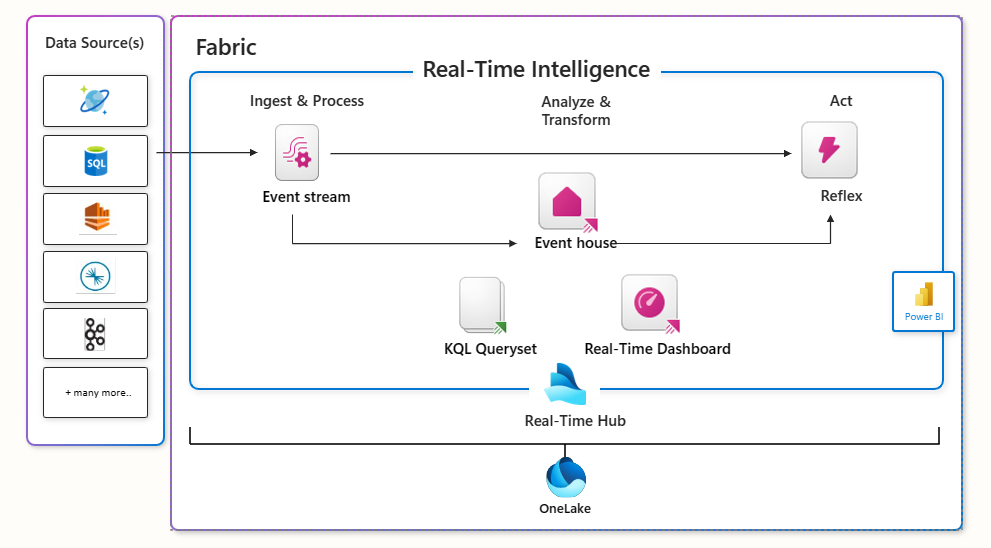
A broader view of how Activator fits into Fabric’s Real-Time Intelligence:

What Is Real-Time Intelligence in Microsoft Fabric? - Microsoft Fabric | Microsoft Learn

Real-World Examples for Beginners

  • IoT Monitoring: If package transit time average > 25 minutes → send Teams alert to logistics.
  • Operations: If pipeline run fails 3 times in an hour → email admins and trigger retry flow.
  • Business: If sales KPI drops >15% in Power BI report → notify manager via email.
  • Anomaly Detection: If error count spikes in streaming logs → post to incident channel.

An example of a triggered Teams notification from Activator:

Solved: Re: Data activator Teams not wroking - Microsoft Fabric Community

This shows a welcome/activation message in Teams — real alerts look similar, with custom headlines and details.

Final Thoughts

Data Activator brings the “act” to Fabric’s real-time story: ingest with EventStream → query/analyze in Eventhouse → visualize live → automatically respond when it matters most. It’s empowering for analysts, business users, and engineers to close the loop without custom code or constant watching.

With this article, we’ve now covered the basics of the key components in Microsoft Fabric:

  • Lakehouse
  • Warehouse
  • Lakehouse vs. Warehouse
  • Eventhouse
  • EventStream & Real-Time Analytics
  • Data Activator

This gives you a strong foundation across storage, big data processing, real-time intelligence, and automated actions.

For deeper exploration in specific areas, check out our category-wise articles:

  • Data Engineering (pipelines, Spark jobs, medallion layers)
  • Power BI (reports, dashboards, real-time visuals, DAX)
  • PySpark (notebooks, transformations, ML in Fabric)
  • Optimization (performance tuning, capacity management, best practices)

Thanks for following the series — you’re now well-equipped to start building end-to-end solutions in Fabric!

 Stay tuned for more advanced guides and real-world scenarios on Microsoft Fabric. Subscribe to the newsletter and keep exploring the world of data. 🚀

Fabric

Event Stream and Real-Time Analytics – Microsoft Fabric

Hello and welcome back to our Microsoft Fabric series!

In the previous article, we explored Eventhouse — the powerful storage and querying engine (using KQL databases) for real-time, time-series data in Fabric’s Real-Time Intelligence area. We saw how it handles massive volumes of events with lightning-fast queries. If you missed it, go check Eventhouse out for context.

This article, we’re focusing on EventStream — the “front door” for bringing live streaming data into Fabric — and how it powers real-time analytics. This is where the magic of acting on data as it arrives really happens. No coding required for most steps, making it beginner-friendly!

If your organization deals with live data like website clicks, sensor readings, app logs, stock trades, or IoT signals, EventStream + Real-Time Analytics lets you capture, clean, enrich, and analyze it instantly — often turning raw events into alerts or dashboards in seconds.

What is EventStream?

EventStream is a no-code (or low-code) tool in Microsoft Fabric’s Real-Time Intelligence that lets you:

  • Capture real-time events from many sources
  • Transform (clean, filter, aggregate, join, enrich) the data on the fly
  • Route the processed data to one or more destinations

Think of it like a smart pipeline for streaming data: events flow in continuously, get shaped as needed, and go out to where you want them — all without writing complex code.

Key benefits for beginners:

  • Visual drag-and-drop editor (like a flowchart)
  • Built-in connectors for popular sources
  • Immediate preview of data as it flows
  • Automatic scaling — handles high volumes easily

Here’s a high-level architecture diagram showing how EventStream fits into the real-time flow in Fabric:

Try a Real-Time Intelligence sample - Power BI | Microsoft Learn

This diagram illustrates sources feeding into EventStream, processing/storage in Eventhouse, analysis via KQL, and visualization in real-time dashboards or Power BI.

How EventStream Works: The Basic Flow

  1. Create an EventStream In your Fabric workspace → New → Eventstream. Give it a name and choose capabilities (standard or enhanced for more sources/transforms).

  2. Add Sources (Where data comes from) Common ones include:

    • Azure Event Hubs
    • Azure IoT Hub
    • Apache Kafka / Confluent
    • MQTT brokers (great for IoT)
    • Custom apps pushing data
    • Sample data for testing

    You can add multiple sources to one EventStream.

  3. Transform the Data (Optional but powerful) Use the visual editor to:

    • Filter rows
    • Aggregate (sum, count, average over time windows)
    • Join with other streams
    • Add calculated columns
    • Expand JSON
    • Manage duplicates
    • Use SQL-like operators for advanced logic

    Preview results live — see transformed data instantly!

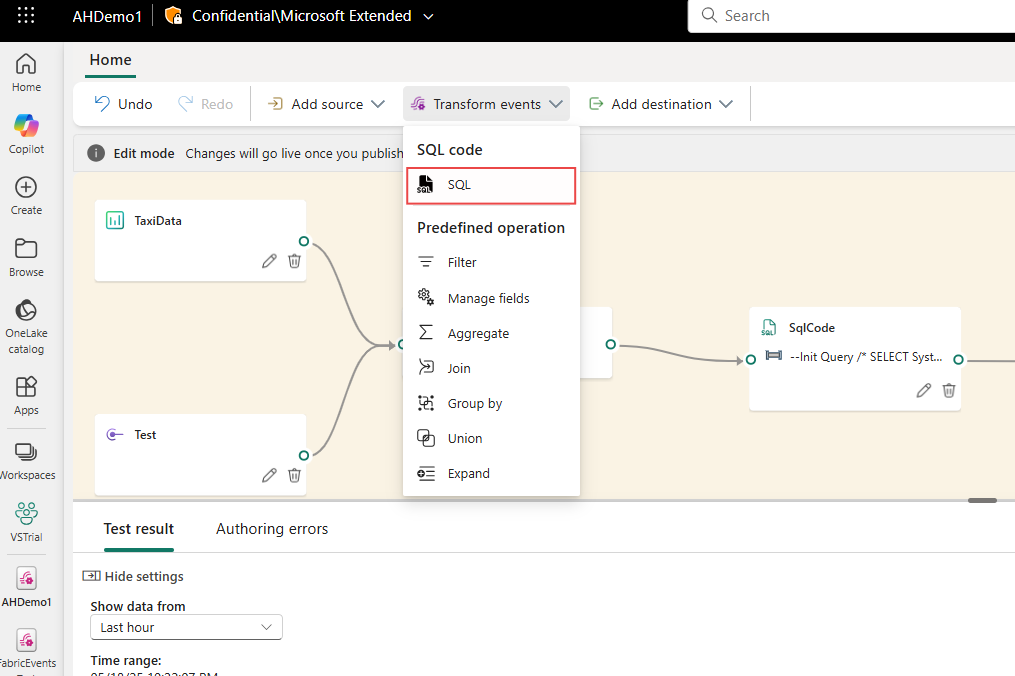
Here’s a screenshot of the EventStream visual editor where you build your pipeline with drag-and-drop nodes:

Fabric June 2025 Feature Summary | Microsoft Fabric Blog | Microsoft Fabric
  1. Add Destinations (Where processed data goes) Popular choices:

    • Eventhouse (KQL database) — for fast querying and storage
    • Lakehouse (Delta tables)
    • Custom endpoints
    • Other Fabric items

    One EventStream can send to multiple places!

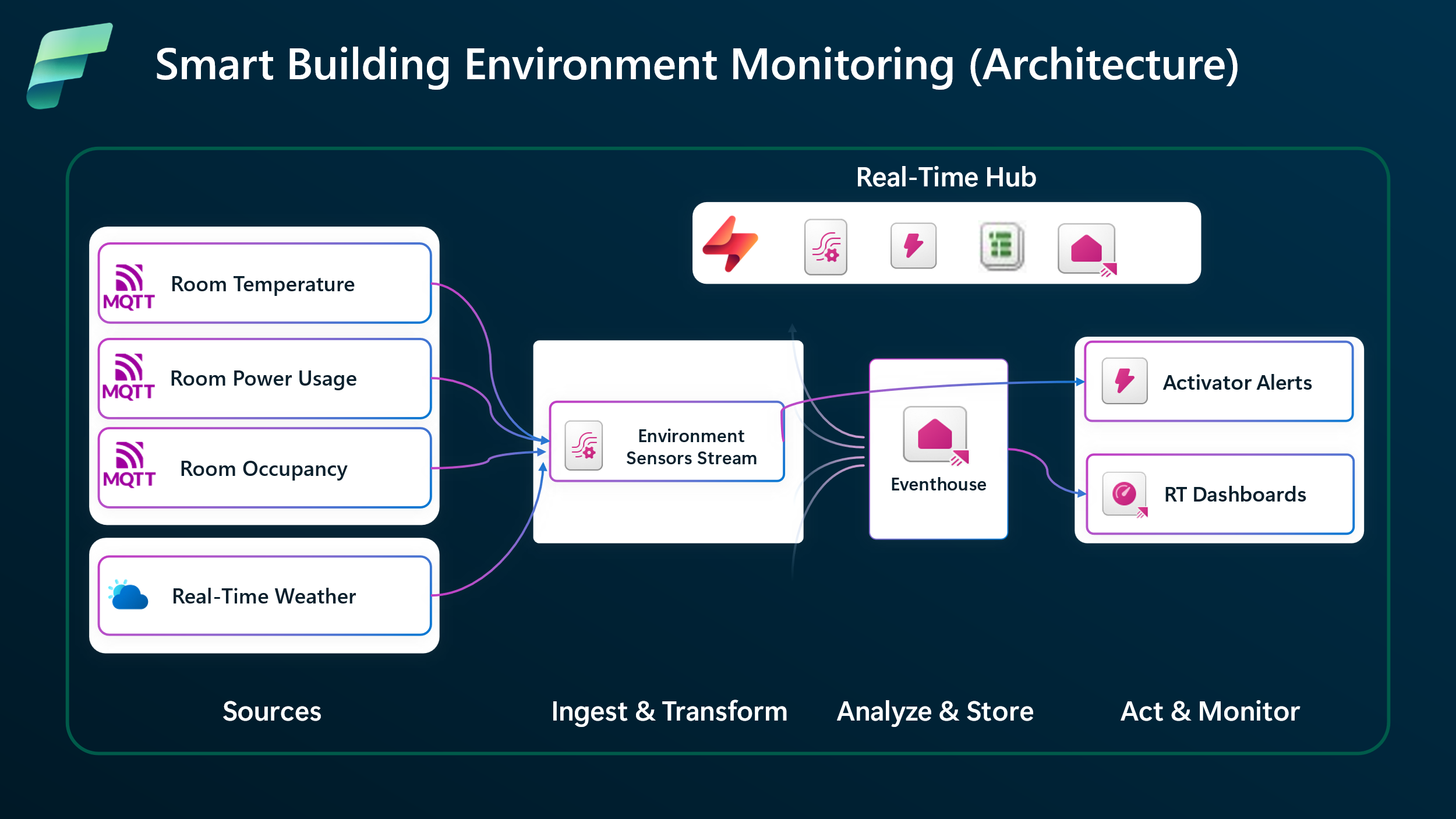
This end-to-end flow diagram shows a typical EventStream pipeline with ingestion, processing, and output:

From Signals to Insights: Building a Real-Time Streaming Data Platform with Fabric Eventstream | Microsoft Fabric Blog | Microsoft Fabric

Real-Time Analytics: Turning Streams into Insights

Once data lands in destinations (especially Eventhouse), real-time analytics kicks in:

  • Query billions of events in seconds using KQL (Kusto Query Language)
  • Build real-time dashboards in Power BI with live refresh
  • Create alerts and actions (more on this in future posts)
  • Use geospatial analysis for location-based events
  • Run ML models or anomaly detection on fresh data

Real-Time Intelligence in Fabric combines EventStream (ingestion + processing) + Eventhouse (storage + query) to give you an end-to-end solution for:

  • Monitoring systems live
  • Detecting fraud instantly
  • Optimizing operations (e.g., smart buildings, supply chain)
  • Personalizing user experiences in real time

Here’s an example of a real-time dashboard connected to streaming data from EventStream:

Real-time streaming in Power BI - Power BI | Microsoft Learn

Wrapping Up

EventStream makes streaming data approachable: capture from anywhere, transform easily, route smartly. Paired with Real-Time Analytics (via Eventhouse and KQL), it turns constant data flows into immediate business value — whether monitoring, alerting, or visualizing live.

This builds perfectly on Eventhouse: EventStream brings the data in, Eventhouse stores and queries it fast.

Stay tuned for our next blog post, where we’ll walk you through Data Activator in Fabric — the exciting tool that lets you automatically act on patterns and conditions in your real-time data (e.g., send alerts, trigger workflows, or update systems when something important happens). We’ll keep the series rolling with more hands-on examples!

Thanks for reading! Stay tuned for more practical insights on Microsoft Fabric. Subscribe to the newsletter and keep exploring the world of data. 🚀

#MicrosoftFabric #FabricEventStream #RealTimeAnalytics #EventStream #FabricRealTime #RealTimeIntelligence #StreamingData #PowerBI #DataEngineering #IoT #FabricTutorial #Analytics

Fabric

Microsoft Fabric Eventhouse: Real-Time Analytics

Understanding Microsoft Fabric Eventhouse: Real-Time Analytics Made Simple

Hello and welcome back to our Microsoft Fabric series!

So far, we’ve covered the Lakehouse (great for raw and diverse data with Spark processing) and the Data Warehouse (ideal for structured BI and full T-SQL analytics). Now, let’s move to a completely different but super powerful part of Fabric: Eventhouse — the home for real-time intelligence.

If your data comes in fast — like logs from apps, sensor readings from IoT devices, clicks on a website, stock prices, or monitoring alerts — Eventhouse helps you capture, store, and analyze it as it arrives, often in seconds. This is perfect for scenarios where waiting minutes or hours for insights is too slow.

Eventhouse is part of Real-Time Intelligence in Fabric. It uses the Kusto Query Language (KQL) — a fast, powerful language designed exactly for this kind of high-volume, time-based data.

What is Microsoft Fabric Eventhouse?

An Eventhouse is like a smart container or workspace that holds one or more KQL databases.

  • It doesn’t store data itself — it manages and optimizes multiple KQL databases.
  • Each KQL database contains tables optimized for events (time-series data), supporting structured, semi-structured (like JSON), and even unstructured data.
  • Eventhouse is built for massive scale: millions of events per second, automatic partitioning by time, compression, and super-fast queries.

Eventhouse shines when you need:

  • Real-time monitoring and alerting
  • IoT analytics
  • Application performance insights
  • Security logging and threat detection
  • Live user behavior tracking

Here’s a high-level architecture showing how Eventhouse fits into Fabric’s Real-Time Intelligence:

Microsoft Fabric RTI: Eventhouse and Real-Time Dashboards – Sander van de Velde

Key Components: KQL Database and EventStream

1. KQL Database

  • This is where your actual data lives inside the Eventhouse.
  • When you create an Eventhouse, Fabric often auto-creates a KQL database with the same name.
  • You can add more databases, use shortcuts (like linking to external data without copying), create tables, materialized views (for faster repeated queries), functions, and policies (for retention, caching, etc.).
  • Query it with KQL — simple yet extremely powerful for time-based filters, aggregations, joins, and text search.

Example: Find the top 10 errors in the last hour? KQL makes it easy and lightning-fast.

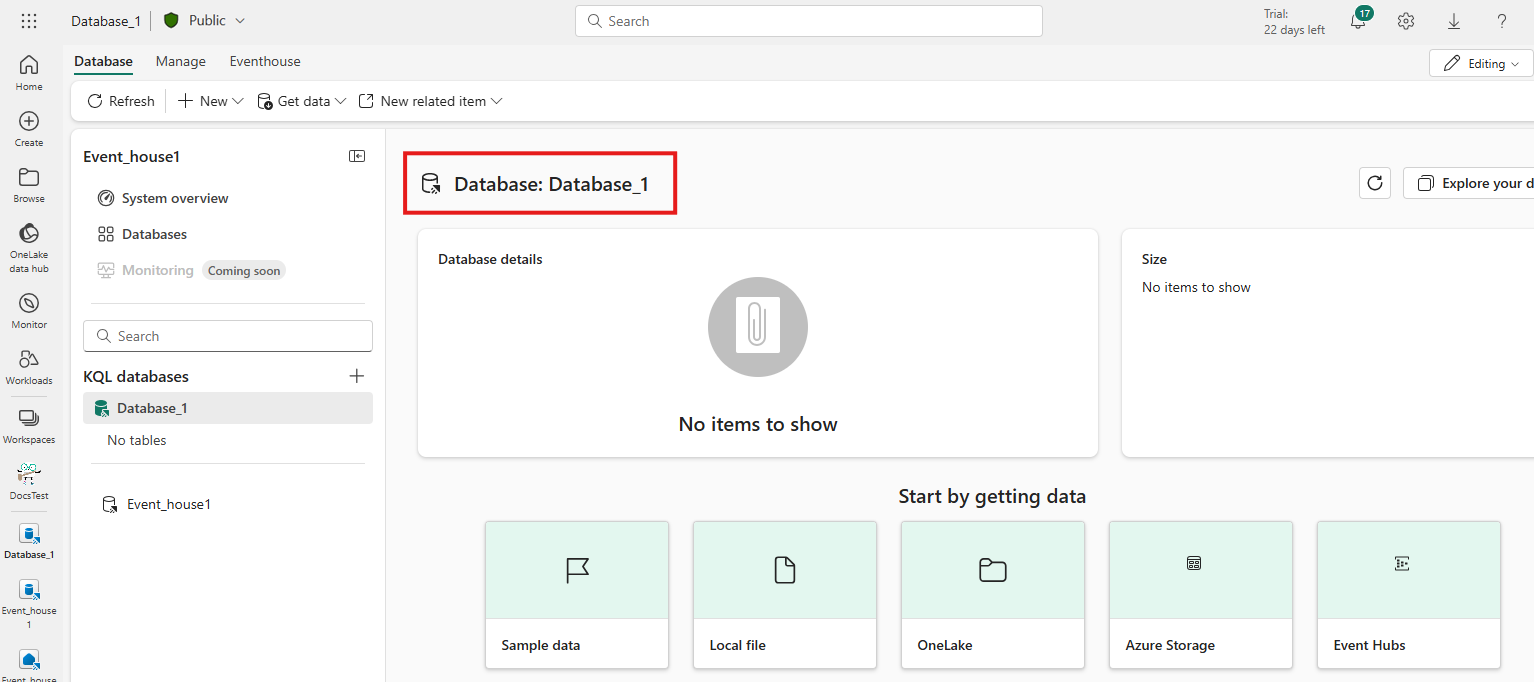
Here’s a screenshot of an Eventhouse with a KQL database open in Fabric — notice the clean interface for exploring tables, querying, and managing policies:

Create an eventhouse - Microsoft Fabric | Microsoft Learn

2. EventStream (High-Level Intro)

  • EventStream is the no-code tool in Fabric for capturing real-time events from many sources (Azure Event Hubs, Kafka, IoT Hub, custom apps, etc.).
  • You can filter, transform (add fields, aggregate, join), and route the data without writing code.
  • One popular destination? Send straight to an Eventhouse (KQL database) for instant storage and analysis.
  • It supports two modes: direct ingestion (fast and simple) or processed ingestion (transform first).

Why Eventhouse Stands Out for Beginners

  • Super fast ingestion and queries — Even on billions of rows, KQL returns results in seconds.
  • No servers to manage — Fully managed in Fabric, scales automatically.
  • Works with Power BI — Build real-time dashboards and alerts easily.
  • Integrates with the rest of Fabric — Shortcuts to Lakehouse/OneLake, notebooks, pipelines, and more.
  • Great for learning — Start with sample data or quick templates in Fabric.

Final Thoughts

Microsoft Fabric Eventhouse brings real-time analytics to everyone — no need for complex setups like traditional streaming platforms. With KQL databases for storage and querying, and EventStream for easy ingestion and routing, you can turn live events into actionable insights instantly.

It’s the perfect complement to Lakehouse (for big raw data processing) and Data Warehouse (for structured BI). Together, they give you a complete modern data platform.

As a beginner, try creating a free trial workspace, add an Eventhouse, connect a simple EventStream (even sample data), and run a few KQL queries — you’ll see how quick and powerful it is!

Stay tuned for our next blog post, where we’ll dive deeper into EventStream and Real-Time Analytics in Fabric — including how to set up transformations, destinations, and live dashboards. We’ll keep building on everything we’ve covered so far!

Thanks for reading! Stay tuned for more practical insights on Microsoft Fabric. Subscribe to the newsletter and keep exploring the world of data. 🚀

Fabric

Lakehouse vs Warehouse in Fabric

Lakehouse vs. Warehouse in Microsoft Fabric: Which One Should You Choose?


Hello again! In our previous article, we explored Microsoft Fabric Data Warehouse , Microsoft Fabric Data Warehouse is a fully managed, enterprise-grade relational data warehouse optimized for structured data and high-performance SQL analytics. If you missed it, go check Fabric Data Warehouse out for context.

 Many people get confused because both are built on the same foundation (OneLake and Delta Parquet format), yet they serve different needs. Today, we’ll clear up the confusion with a simple comparison, key differences, real-world scenarios, and guidance on when to pick one—or use both together.

This is one of the most common questions in Fabric, so let’s break it down in plain English.

Quick Overview: What They Really Are

  • Lakehouse — A modern “data lake + warehouse” hybrid. It handles raw, semi-structured, and structured data in one place. You ingest everything (logs, JSON, images, CSVs, etc.), process with Spark (Python, Scala, etc.), and query with SQL via its built-in SQL analytics endpoint (read-only T-SQL access).
  • Warehouse — A full relational data warehouse optimized for structured data and business intelligence. It gives you complete T-SQL read/write support (CREATE, INSERT, UPDATE, DELETE, stored procedures), ACID transactions across multiple tables, and top performance for complex BI queries and star schemas.

Both live in OneLake, so your data is never duplicated unnecessarily—shortcuts and automatic sync make them work together seamlessly.

Here’s a high-level architecture view showing how Lakehouse and Warehouse fit into Fabric (both powered by OneLake):

Lakehouse vs Data Warehouse vs Real-Time Analytics/KQL Database: Deep Dive into Use Cases, Differences, and Architecture Designs | Microsoft Fabric Blog | Microsoft Fabric

This above diagram highlights the unified OneLake foundation and how read-only SQL endpoints connect Lakehouses while Warehouses support full read/write.

Key Differences: Side-by-Side Comparison

Feature Lakehouse Warehouse
Best for Raw + diverse data, data engineering, ML/AI Structured BI, reporting, governed analytics
Data Types Structured, semi-structured, unstructured Primarily structured
Primary Engine Apache Spark (PySpark, Spark SQL, Scala, etc.) T-SQL (MPP SQL engine)
T-SQL Access Read-only via SQL analytics endpoint Full read/write T-SQL
Transactions ACID on single table (Delta) Full multi-table ACID transactions
Typical Users Data engineers, data scientists BI developers, analysts, SQL pros
Workloads ETL, big data processing, ML notebooks Star/snowflake schemas, complex joins, BI
Write Operations Spark notebooks, pipelines T-SQL scripts, stored procedures
Performance Focus Flexible processing on massive raw data Ultra-fast queries on modeled, structured data

This table captures the core trade-offs—Lakehouse gives flexibility, Warehouse gives SQL power and governance.

When to Choose Lakehouse

Pick Lakehouse when:

  • You deal with raw, messy, or unstructured data (logs, IoT, JSON, images, videos).
  • You need Spark for heavy transformations, machine learning, or Python-based data science.
  • Your team has data engineers/scientists comfortable with notebooks and PySpark.
  • You want one place for the full data lifecycle: ingest raw → clean → analyze → ML.
  • You’re building a medallion architecture (bronze/silver/gold layers) for big data.

Example: A company ingesting streaming IoT sensor data and web logs, running ML models to predict failures, then serving cleaned data for BI.

Microsoft Fabric reference architecture | James Serra's Blog

This reference architecture shows Lakehouse as the central hub for ingesting and transforming diverse data before optional modeling in Warehouse.

When to Choose Warehouse

Pick Warehouse when:

  • Your focus is business intelligence, dashboards, and reporting in Power BI.
  • Data is highly structured (fact/dimension tables, star schemas).
  • You need full T-SQL capabilities: updates, deletes, stored procedures, multi-table transactions.
  • Your team is strong in SQL (from SQL Server, Synapse, etc.) and wants governed, performant BI.
  • Query speed and consistency for complex analytics are critical.

The Best Approach: Use Both Together!

In most real-world Fabric projects, you don’t have to choose one—use both!

  • Lakehouse as your foundation: Ingest raw data, do heavy ETL/ML with Spark, create silver/gold Delta tables.
  • Warehouse as your BI layer: Use shortcuts to read Lakehouse tables (no copy needed), apply final modeling, and run high-performance T-SQL for reports.

Microsoft calls this “better together.” The SQL analytics endpoint on Lakehouse gives read-only T-SQL access, while a full Warehouse adds read/write power.

Many recommend the medallion pattern:

  • Bronze (raw) → Lakehouse
  • Silver (cleaned) → Lakehouse
  • Gold (modeled for BI) → Warehouse (or Lakehouse tables queried via endpoint)

Quick Decision Checklist

  • Lots of unstructured/semi-structured data or ML? → Lakehouse
  • Pure BI/reporting on structured data with complex SQL? → Warehouse
  • Team loves Python/Spark? → Lakehouse
  • Team loves T-SQL and migration from SQL Server? → Warehouse
  • Need both raw exploration + governed BI? → Both (most common winning combo)

Final Thoughts

The confusion comes because Lakehouse and Warehouse overlap a lot—both use Delta on OneLake—but they target different strengths. Lakehouse brings openness and versatility for modern data/AI workloads. Warehouse delivers classic warehouse reliability for BI and SQL-heavy analytics.

Start small: Create a trial workspace, ingest sample data into a Lakehouse, then create a Warehouse shortcut to it and query both ways. You’ll quickly see what fits your needs.

If this helped clarify things, drop a comment or share your own Fabric experience. In future posts, we can explore real examples, like building a medallion architecture or migrating from Synapse.

In our next blog post, we’ll dive deeper into the  Eventhouse in Microsoft Fabric and key features.

Thanks for reading! Stay tuned for more practical insights on Microsoft Fabric. Subscribe to the newsletter and keep exploring the world of data. 🚀
Fabric

Microsoft Fabric Data Warehouse

Understanding Microsoft Fabric Data Warehouse

Welcome back! In our previous article, we explored Microsoft Fabric Lakehouse, a flexible platform for handling raw, semi-structured, and diverse data types—all built on OneLake using the open Delta Parquet format. If you missed it, go check All about Lakehouse out for context.

Today, we focus on another powerful component: Microsoft Fabric Data Warehouse. This guide is perfect for new learners, with clear explanations and helpful visuals to make concepts easy to grasp.

What is Microsoft Fabric Data Warehouse?

Microsoft Fabric Data Warehouse is a fully managed, enterprise-grade relational data warehouse optimized for structured data and high-performance SQL analytics.

It lives on top of OneLake and stores data in the Delta Parquet format (just like Lakehouse), but it is purpose-built for traditional data warehousing scenarios: star schemas, snowflake schemas, data marts, BI reporting, and governed analytics.

Why Do We Need a Data Warehouse in Fabric?

While Lakehouse is great for raw and semi-structured data, enterprises still need:

  • Strong schema enforcement

  • Fast SQL queries

  • Star/snowflake models

  • BI-optimized storage

Fabric Data Warehouse is designed exactly for these use cases.

Unlike Lakehouse (which excels at raw and big data workloads), the Data Warehouse emphasizes T-SQL compatibility, ACID transactions, and optimized performance for structured querying and reporting.

Here’s a high-level view of how Data Warehouse fits into the Microsoft Fabric ecosystem:

What is Microsoft Fabric - Microsoft Fabric | Microsoft Learn

Key Features

  • SQL Endpoint: The Fabric Data Warehouse provides a SQL endpoint, which means you can query your data using standard SQL – the language data professionals use. If you know SQL, you’re already ahead! If not, it’s a great skill to learn.

  • Performance and Scalability: Fabric Data Warehouses are designed for speed. They can handle massive amounts of data and complex queries very efficiently, scaling automatically to meet your needs. This means faster reports and quicker insights.

  • OneCopy Architecture: A really cool feature! In Fabric, whether your data is in a Lakehouse or a Data Warehouse, it’s essentially stored once. This “OneCopy” architecture eliminates data duplication, simplifies management, and ensures consistency. You can query the same data using different analytical engines (SQL for the warehouse, Spark for the Lakehouse) without moving or copying it.

  • Integration with Power BI: Microsoft Fabric is deeply integrated with Power BI, a leading business intelligence tool. This makes it incredibly easy to connect your data warehouse to Power BI to create interactive dashboards and reports that visualize your insights.

  • Fully Managed (No Infrastructure Work): Need not to manage Servers, Indexes, Performance tuning and Scaling. Fabric automatically handles compute and storage.

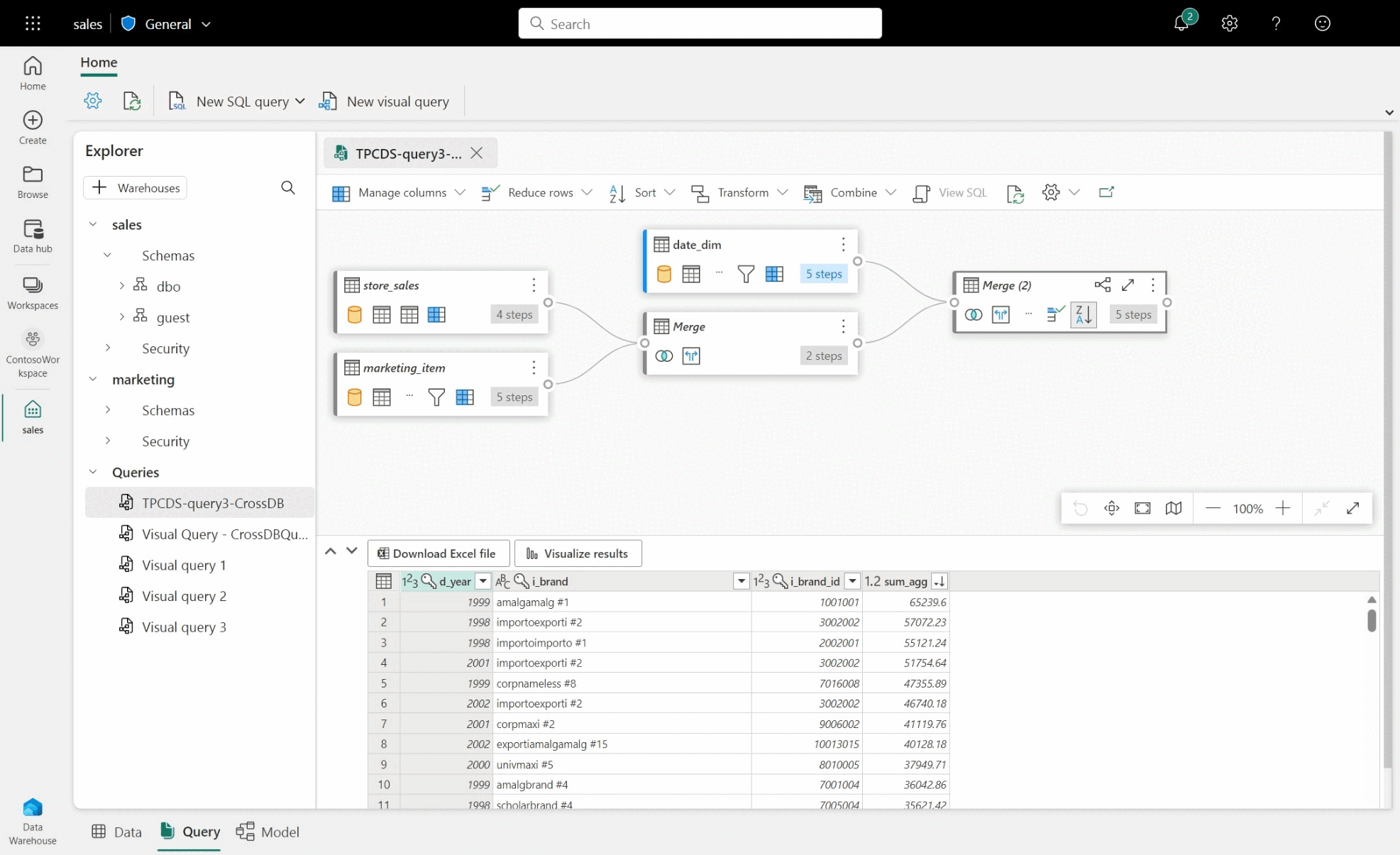
Take a look at the Fabric Data Warehouse interface, where you write queries, use visual editors.

Query Using the Visual Query Editor - Microsoft Fabric | Microsoft ...

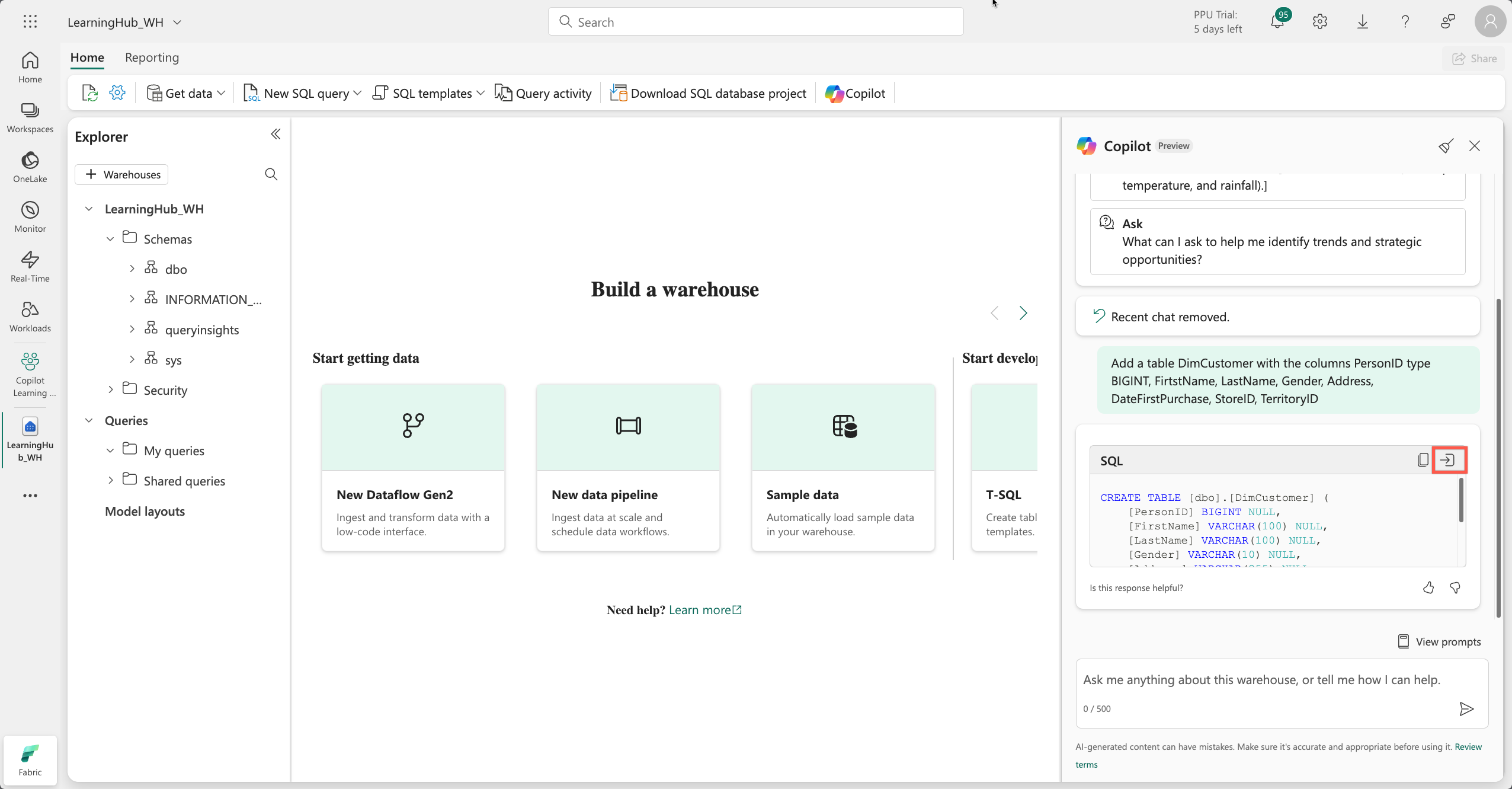
Get help from Copilot


Build a Data Warehouse schema with Copilot for Data Warehouse ...

How Does It Work? A Simple Workflow

A typical beginner workflow looks like this:

  1. Create a Warehouse — In your Fabric workspace, add a new Warehouse item (or start with the sample warehouse for quick learning).
  2. Ingest Data — Use Data Factory pipelines or Dataflow Gen2 to load structured data from sources like Azure Blob, SQL databases, or CSVs.
  3. Model Your Data — Create tables, define relationships, build views, and write transformations using T-SQL.
  4. Analyze & Visualize — Query with SQL, connect directly to Power BI for reports and dashboards.

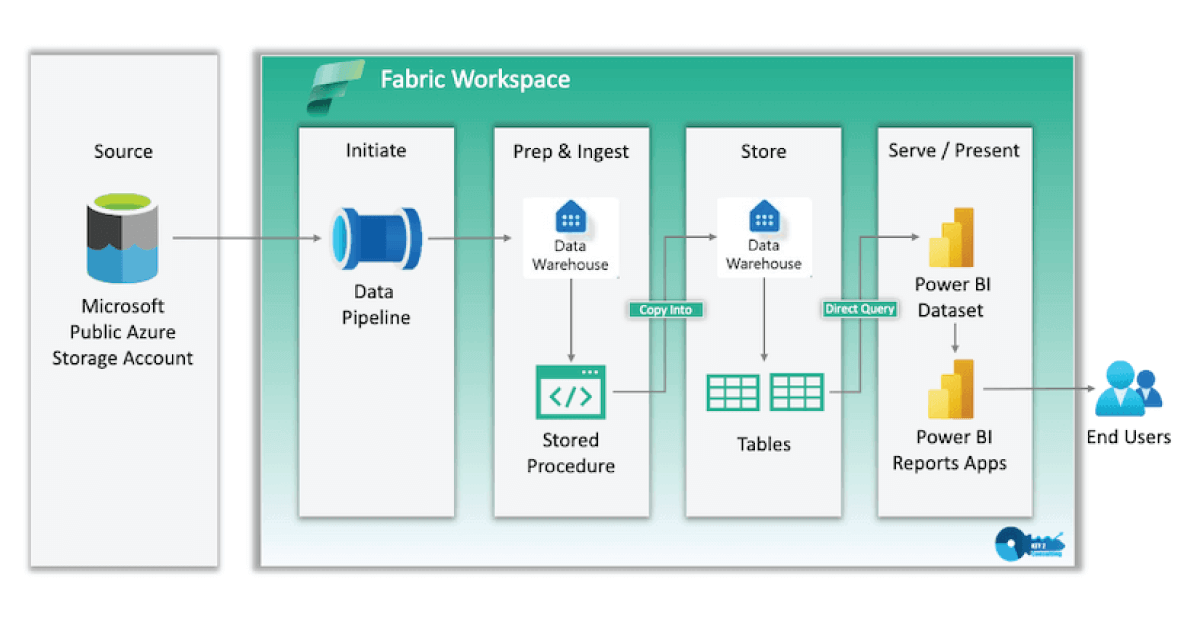
Here’s a visual representation of a common end-to-end flow:

Microsoft Fabric: A Deep Dive into Data Warehouses

Key Benefits

  • Zero Infrastructure Management — Microsoft handles scaling, backups, and maintenance.
  • Pay-as-You-Go Pricing — Only pay for compute when queries run; capacity auto-pauses when idle.
  • Built-in Learning Aids — Start with sample data warehouses, use Copilot to generate SQL, and follow Microsoft’s guided tutorials.
  • Hybrid Power — Combine with Lakehouse for the best of both worlds: raw data exploration + structured BI-ready analytics.

Final Thoughts

Microsoft Fabric Data Warehouse brings classic relational warehousing into the modern lake-centric world—delivering strong performance, full T-SQL support, and tight integration with the rest of Fabric. It’s an excellent choice when your focus is structured data, governed reporting, and BI workloads.

As a beginner, I recommend creating a trial workspace, loading the sample warehouse, and running a few simple queries to see it in action.

In our next blog post, we’ll dive deeper into the big decision: Lakehouse vs. Warehouse in Microsoft Fabric — when to choose one over the other (or even use both together). Stay tuned for clear guidance on what to pick based on your real-world needs!

Thanks for reading! Stay tuned for more practical insights on Microsoft Fabric. Subscribe to the newsletter and keep exploring the world of data. 🚀

Fabric

All About Fabric Lakehouse

Microsoft Fabric Lakehouse: Your All-in-One Data Hub

Hey there! In the previous article, we explored Microsoft Fabric from a high-level perspective. If you haven’t read it yet, I highly recommend checking it out here: Microsoft Fabric.

If you’re dipping your toes into Microsoft Fabric. At its core is the Lakehouse—a smart blend of data lake and warehouse that makes handling big data a breeze. In simple terms, it’s a single spot to store, manage, and analyze all kinds of data without the usual headaches. Let’s break it down in plain English, with some visuals to make it clearer.

What Exactly is a Lakehouse?

Imagine a data lake that’s super flexible for storing raw files, but with the organized querying power of a traditional database. That’s the Microsoft Fabric Lakehouse. It sits on top of OneLake, Fabric’s central storage system, and lets you work with massive amounts of data efficiently. Unlike old-school setups where you’d need separate systems for different data types, Lakehouse unifies everything—cutting down on copies, silos, and costs.

Here’s a diagram showing the overall architecture:

Microsoft Fabric reference architecture | James Serra's Blog

Handling All Kinds of Data: Structured, Semi-Structured, and Unstructured

One of the coolest things about Lakehouse is how it deals with different data flavors:

  • Structured Data: Think neat tables like spreadsheets or database rows—sales figures, customer info. Lakehouse stores these in Delta format for fast queries.
  • Semi-Structured Data: Stuff like JSON, CSV, or XML files that have some organization but aren’t rigid. Great for logs or app data.
  • Unstructured Data: Raw files like images, videos, documents, or audio. No fixed structure, but Lakehouse handles them without a hitch.

This flexibility means you can dump everything in one place and analyze it together—perfect for mixed projects. In the Lakehouse, there’s a “Tables” folder for structured stuff and a “Files” folder for the rest.

To visualize the differences:

Structured vs Semi-structured vs Unstructured data - 10 Senses

The Magic of Shortcuts

No need to copy data around—enter Shortcuts! These are like virtual links to data stored elsewhere, whether in Azure, Amazon S3, Google Cloud, or even another Fabric workspace. You point to the original spot, and Lakehouse treats it as its own, saving time, money, and storage space. It’s a game-changer for teams sharing data without duplication.

Check out this illustration of how shortcuts connect everything:

OneLake, the OneDrive for data - Microsoft Fabric | Microsoft Learn

Other Key Features Made Simple

  • SQL Analytics Endpoint — You get a built-in SQL endpoint automatically, so you can query your data using regular SQL — just like a traditional data warehouse.
  • Apache Spark — For heavy lifting: cleaning, transforming, and processing very large datasets.
  • Delta Lake format — Makes tables reliable, fast, and supports ACID transactions (safe updates and deletes).
  • Ready for AI & Analytics — Connects smoothly to the rest of Fabric for machine learning, real-time insights, and Power BI reports.

Final Thoughts

The Fabric Lakehouse removes most of the old pain points:

  • No more moving data between lake and warehouse
  • No more format conversion nightmares
  • One place for raw files, cleaned tables, and analytics

It’s simple, powerful, and scales as your data grows.

Want to go further? In the next blog post we’ll explore the Fabric Data Warehouse — how it works together with the Lakehouse and when to use each one.

Thanks for reading! Stay tuned for more practical insights on Microsoft Fabric. Subscribe to the newsletter and keep exploring the world of data. 🚀
Fabric

What is Microsoft Fabric

 As someone passionate about data platforms, I’ve been closely following Fabric for past couple of years. It stands out as a true game-changer — a single, unified SaaS analytics platform that brings together data engineering, data science, real-time analytics, data warehousing, and business intelligence under one roof. No more stitching together disparate services. No more unnecessary data movement. Just a cohesive, secure, and scalable environment built for the modern data era.

In this post, I’ll give you a high-level overview of what Microsoft Fabric is, why it matters, and walk through its key components — with visuals to help illustrate the concepts.

What is Microsoft Fabric?

Microsoft Fabric is an end-to-end analytics and data platform delivered as a software-as-a-service (SaaS) solution on Azure. It supports the entire data lifecycle: ingestion, transformation, storage, real-time processing, machine learning, analytics, and reporting — all within a single, integrated experience.

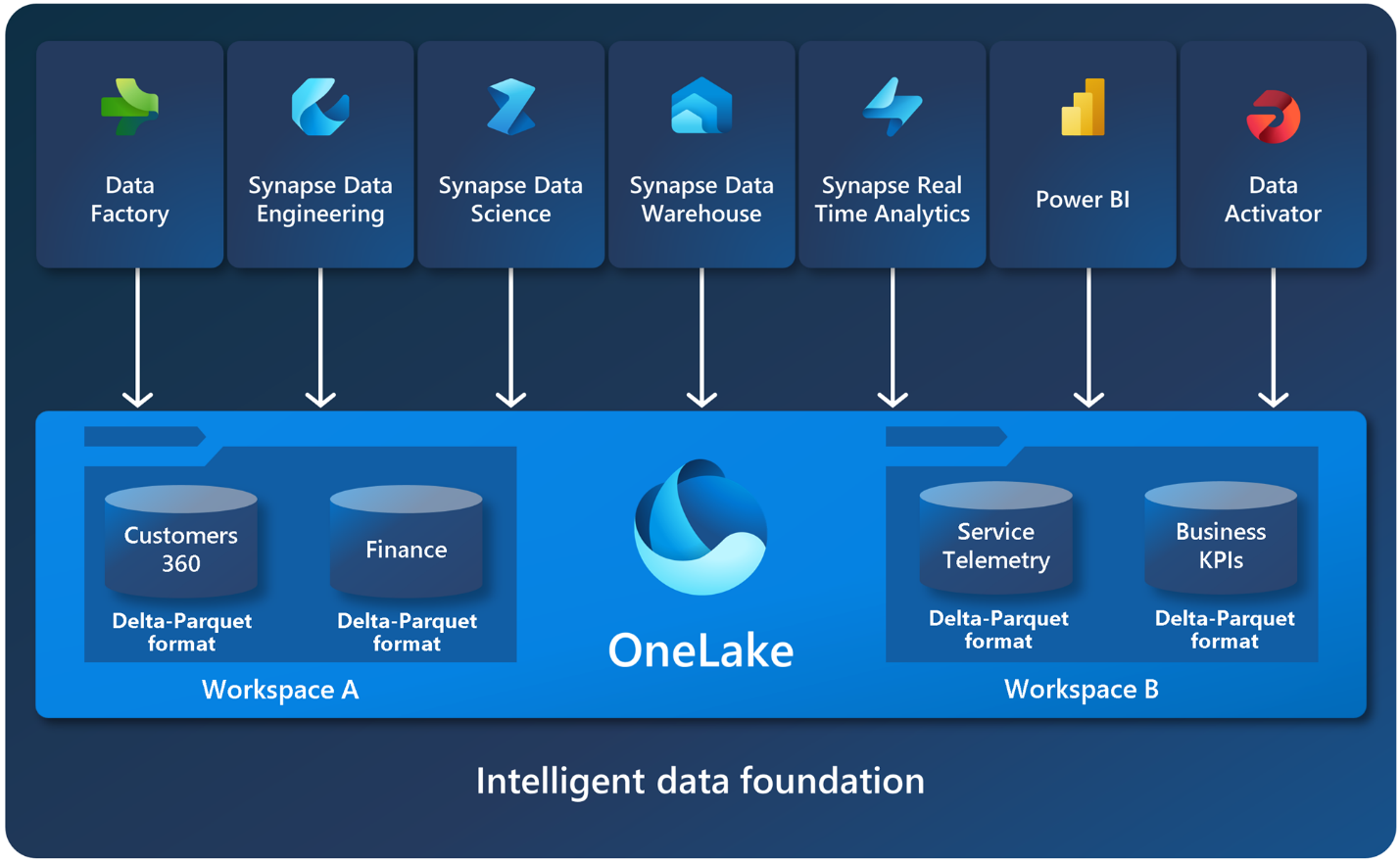
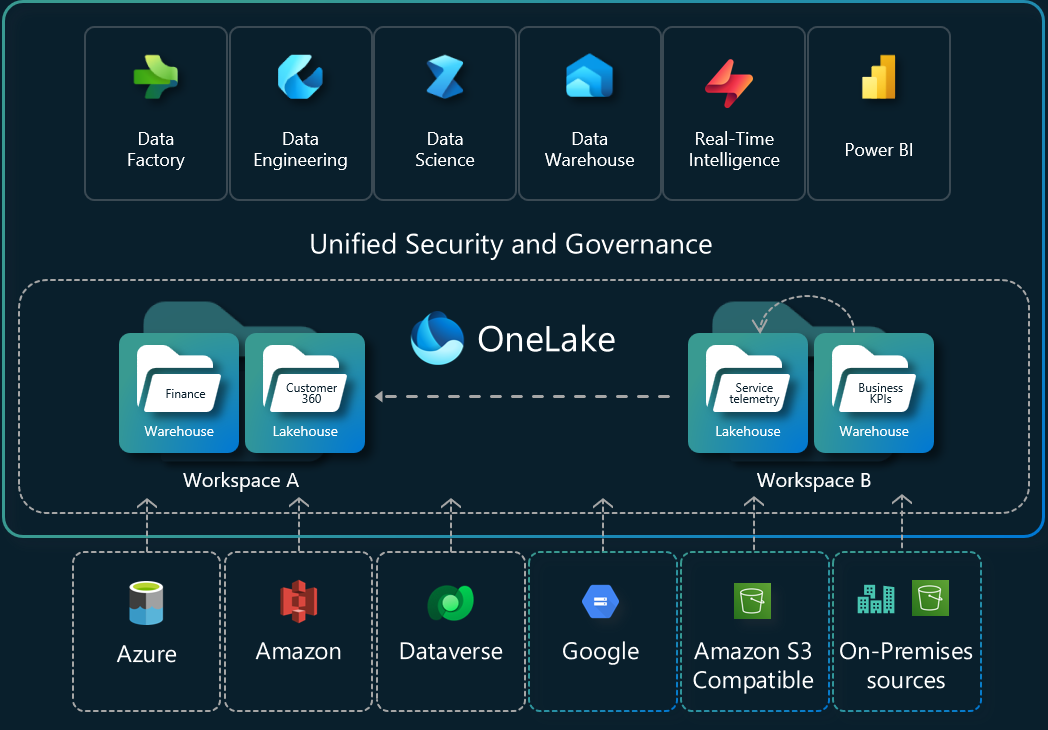
At its heart, Fabric is built on OneLake, a unified logical data lake that acts like “OneDrive for data.” Every workload in Fabric shares the same storage foundation, which eliminates data silos and duplication while providing seamless access and governance across the platform.

What is Microsoft Fabric - Microsoft Fabric | Microsoft Learn

This unified approach delivers several powerful benefits:

  • Elimination of data movement — Data lives once in OneLake and is accessible to all engines without copying.
  • Role-based experiences — Tailored tools for data engineers, scientists, analysts, and DBAs.
  • Built-in AI assistance — Copilot capabilities help with code, queries, pipelines, and insights.
  • Enterprise-grade governance — Centralized security, compliance, and discovery through Microsoft Purview and the OneLake Catalog.
  • Pay-as-you-go simplicity — No infrastructure to manage; everything scales automatically.

Fabric essentially implements a data mesh architecture at enterprise scale, making it easier than ever to democratize data while maintaining control.

The Foundation: OneLake

Everything in Fabric rests on OneLake — a tenant-wide data lake built on Azure Data Lake Storage Gen2. It uses a hierarchical namespace (workspaces act like folders, and items like lakehouses or warehouses live inside them) and supports powerful features like shortcuts that let you mount external data (from Azure, AWS S3, Databricks, etc.) without moving it.

OneLake ensures that data is stored once in open formats (primarily Delta Lake) and can be instantly used across every Fabric workload.

OneLake, the OneDrive for data - Microsoft Fabric | Microsoft Learn

This “store once, use everywhere” model is one of Fabric’s biggest differentiators.

Key Components of Microsoft Fabric

Fabric organizes its capabilities into specialized experiences (workloads) that all share the same OneLake foundation.

1. Data Factory

Data Factory is the modern evolution of Azure Data Factory, enhanced with Power Query’s familiar low-code experience. It supports over 200 native connectors for ingesting and transforming data from virtually any source — on-premises, cloud, or SaaS.

You can build data pipelines, orchestrate workflows, and schedule jobs with ease. It’s perfect for ETL/ELT processes that feed into lakehouses or warehouses.

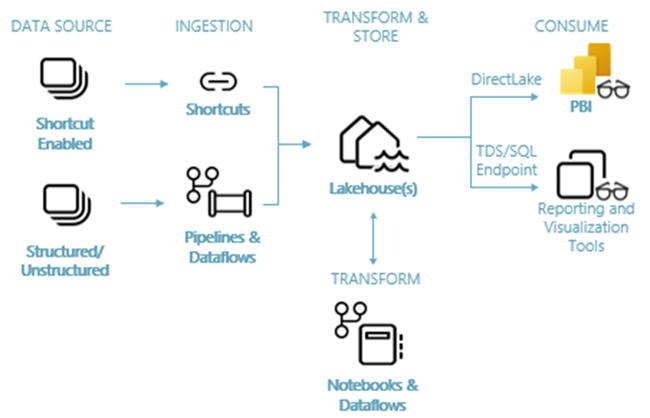
Diagram of the end-to-end architecture of a lakehouse in Microsoft Fabric.

2. Data Engineering & Lakehouse

The Lakehouse experience combines the flexibility of a data lake with the reliability and performance of a data warehouse. Built on Apache Spark, it lets data engineers use notebooks to transform massive datasets, create tables, and apply Delta Lake features such as ACID transactions, time travel, and schema enforcement.

Lakehouses are the sweet spot for most modern analytics workloads — supporting both structured and unstructured data in one place.

3. Data Warehouse

For teams that prefer a traditional SQL experience, Fabric offers a fully managed Data Warehouse. It uses T-SQL, separates compute from storage (so you can scale independently), and stores data natively in Delta Lake format.

It delivers excellent performance for BI workloads and complex analytical queries while remaining fully integrated with the rest of the platform.

4. Data Science

Data Science in Fabric provides a collaborative environment for building, training, and deploying machine learning models. You get Spark-based notebooks, integration with Azure Machine Learning for experiment tracking and model registry, and the ability to publish predictive insights directly into Power BI reports.

It lowers the barrier for turning data into actionable AI.

5. Real-Time Intelligence

Real-Time Intelligence (which includes Eventhouse and KQL databases) handles streaming data from IoT devices, logs, clickstreams, and more. It unifies ingestion, transformation, storage, and real-time analytics in one experience.

With the Real-Time hub, you can discover, ingest, and act on streaming data with minimal code — ideal for operational dashboards, anomaly detection, and real-time decision making.

6. Power BI

No modern analytics platform would be complete without world-class visualization. Power BI is natively embedded in Fabric, allowing you to connect directly to lakehouses, warehouses, and semantic models with Direct Lake mode for lightning-fast performance.

You can create stunning reports and dashboards that leverage the entire Fabric data estate.

Power BI Dashboards vs. Reports

Why I’m Excited About Fabric

Microsoft Fabric represents a significant leap forward. It removes the friction of managing multiple tools and services, reduces costs through shared storage and compute, and accelerates time-to-insight with built-in AI and governance.

Whether you’re a large enterprise dealing with complex data landscapes or a growing organization looking to modernize your analytics stack, Fabric provides a future-proof foundation.

Final Thoughts

This was just a high-level tour — there’s so much more to explore, from shortcuts and mirroring to industry-specific solutions and advanced Copilot scenarios. In future posts, I plan to dive deeper into specific components, share practical implementation tips, and compare Fabric with other platforms.

If you’re just getting started with Microsoft Fabric, I highly recommend exploring the official documentation and spinning up a free trial workspace. The learning curve is gentle, and the possibilities are enormous.

Thank you for reading ! I’d love to hear your thoughts in the comments. In the next article, we will explore what a Lakehouse is in Microsoft Fabric and understand how it works in detail.

Thanks for reading! Stay tuned for more practical insights on Microsoft Fabric. Subscribe to the newsletter and keep exploring the world of data. 🚀

Scroll to Top
×
Your Cart
Cart is empty.
Fill your cart with amazing items
Shop Now
$0.00
Shipping & taxes may be re-calculated at checkout
$0.00